First you need to invite and connect team members to your mobijobi account, you can always add more later on:
Inviting team members to your team
In case you have just registered a new account and logged in for the first time, you will automatically be directed to the “Team” section of the application.

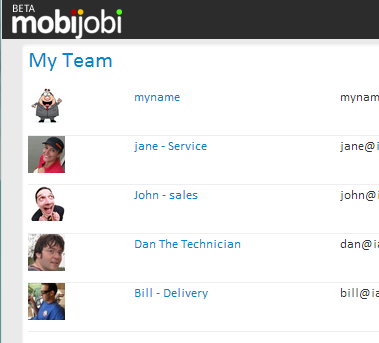
This section allows you to Add and manage team member’s mobile devices to your account.
In case you have not invited any team member ye – the “team” tab will be marked with a small warning icon:

Let’s add some team members to our account:
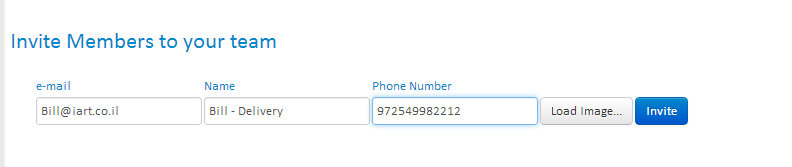
Fill in the team member’s details including e-mail, name, and phone number and click “invite”, newly invited team members activation status will be “Pending” .
 IMPORTANT: in order for the optional SMS service to work properly, please make sure you enter a full international number including all prefixes (for more information visit this wiki page
Newly Added team members will receive an email message with that will include his log-in details:
For example:
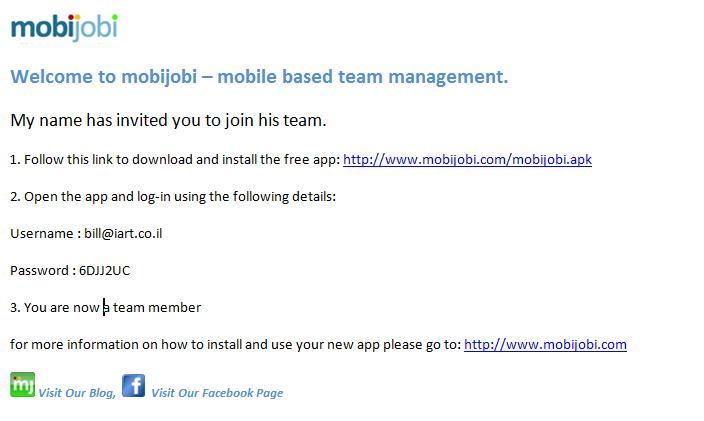
The team member is required to download an android app to his android device, install it and log – in using these log-in details.
Important: make sure your device permits installing applications from unknown sources. for more information on installing android applications click here
Managing the team list:

Your can edit all team members’ details while they are at “Pending” status
Once logged in for the first time the team member’s account will be activated, his activation status will change to “active” and their email address becomes un-editable
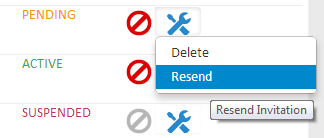
You can re-send new log-in information for any team member on your list by clicking the setup icon and selecting the “Resend” option, this action will send a newly generated log-in details.
You can delete any team members by clicking the setup icon and selecting the “delete” option:
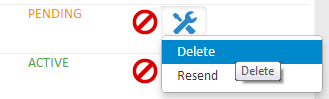
ATTENTION this action is not un-doable:
You can suspend or un-suspend any team members by clicking the “suspend” icon:

Team member details can be edited by clicking their row, for “active” team members only the name and phone number is editable while for “pending” team member all fields are editable.

You change the default icon for any team member by clicking the team member’s icon and selecting an image from your hard drive.
 mobijobi.com - Field Service Management
0 Comments