“My team” tab includes the following:
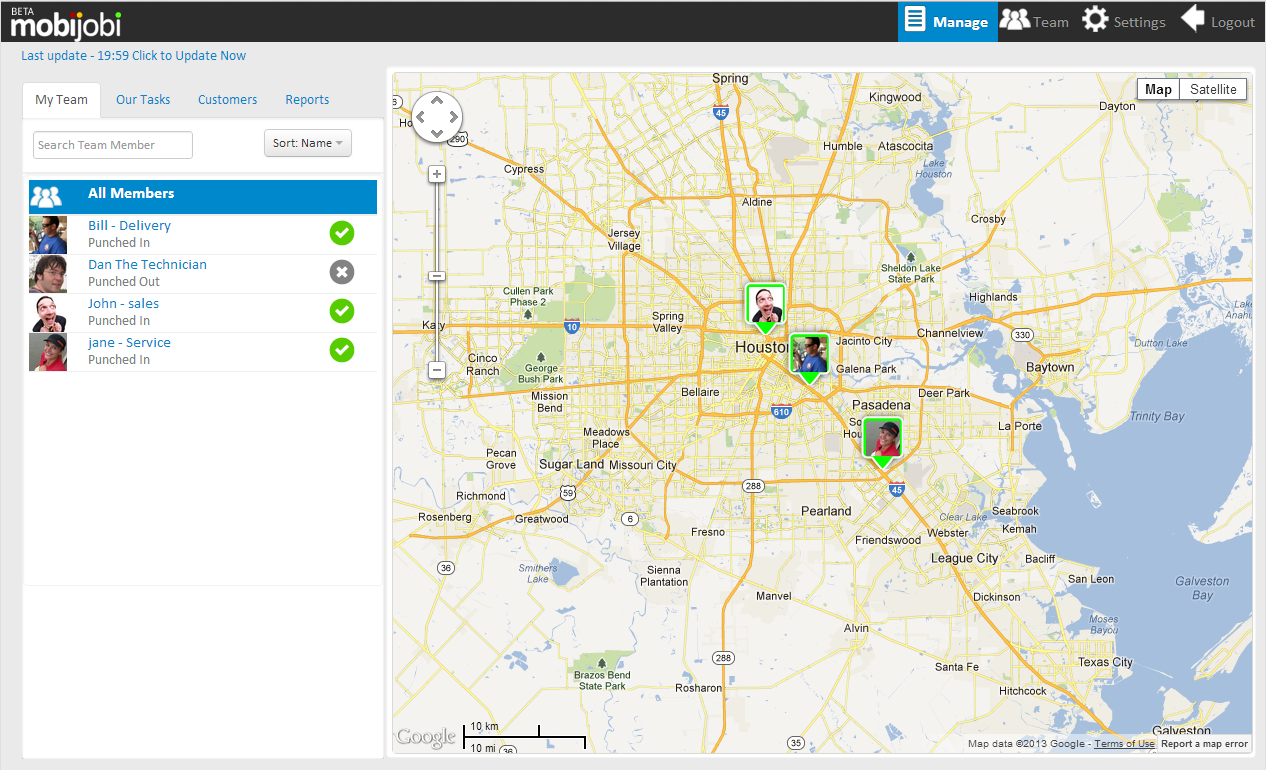
Team members list that includes:
- Team member’s icon: a personalized image
- Team member’s status description: textual description of current team member status (Punched In, late, Overdue, Punched out, No Comm)
- Team Member’s status icon:
 OK – team member is punched in and none of his assigned tasks are at late or overdue status.
 Pay Attention – indicates that at least one of the tasks assigned to this team member are at late or overdue status.
 Punched Out – when team member punches out
 No Comm – when team member has no connection to the server for at least 15 minuts


The “All Members” View – when selected presents a map view containing the punched – in team members locations and statuses.
“Single member” View: (when selecting a team member from the list) presents the following elements:
- Map view of the selected team member location and status including his assigned tasks including a line that connects his current location to his current active task
- Personal details
- Recants punch in and out activities
- A list of his assigned tasks and their statuses including his active task highlighted in light blue
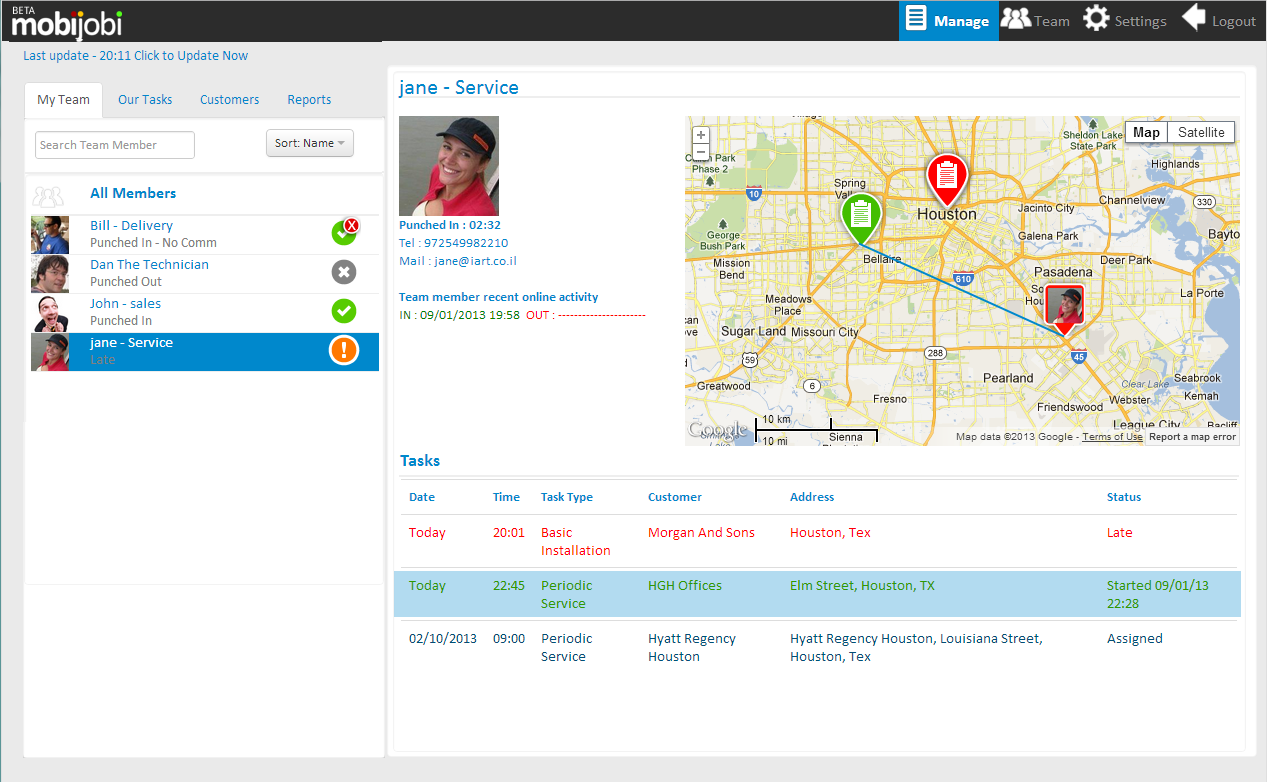
You can edit any of the team member’s tasks by clicking a task row on his task list.
IMPORTANT: for privacy reasons punched-out team members will not be shown over the map
 mobijobi.com - Field Service Management
0 Comments