In this tab, you can create, assign, manage and monitor the entire team tasks.
Create a new task:
On “Our Tasks” tab, click the “add” button.
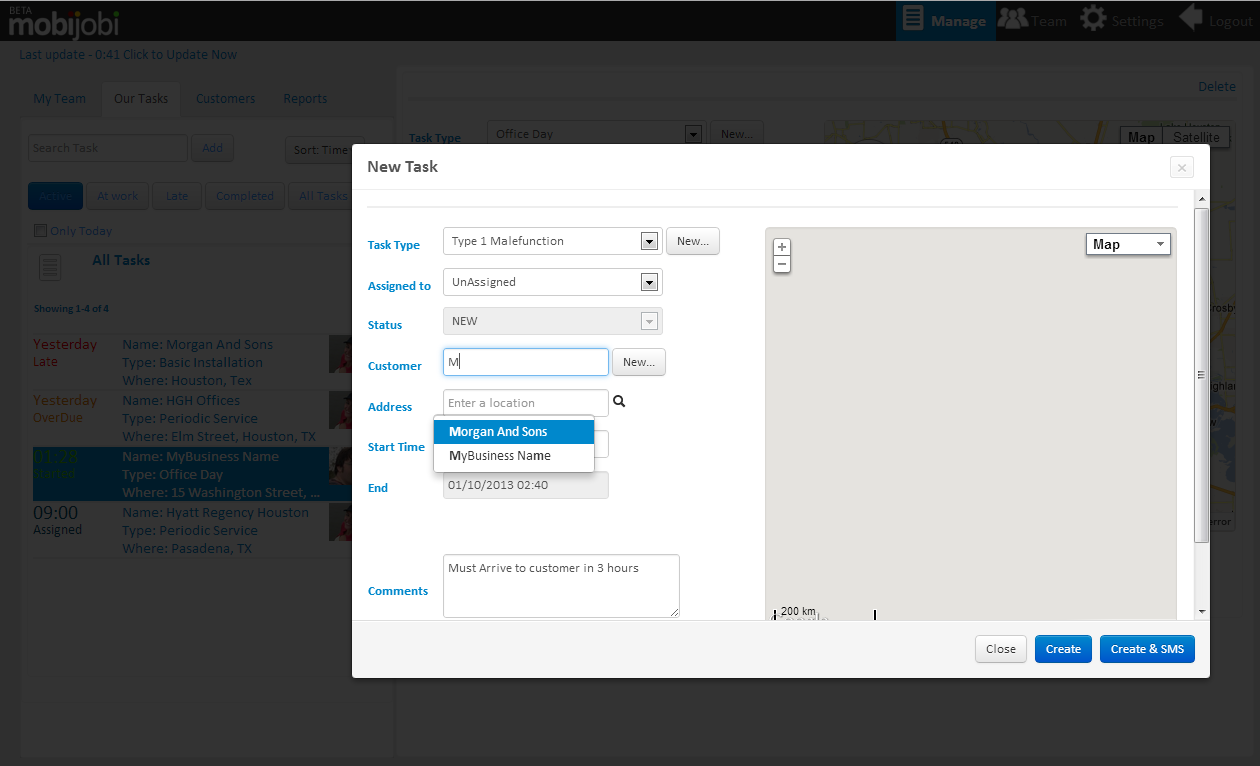
In the popup fill in the following details:
- Select task type (this will determine the default task duration) – or create one using the “new” button – for more info see “Task Type setup”
- Select the team member you wish to assign this task to, or leave it unassigned (you can assign it later)
- Once assigned, you can select and change the task status using the task status combo, this status change will be reflected in the team member’s mobile application:
- New = Unassigned task – once selected will change the “Assign to” field to “Unassigned”
- Accepted = an assigned task.
- At work = a task that was started by you or by the assigned team member
- Finished = a task that was finished by you or by the assigned team member
- Select a customer by typing customer name and picking his name from the autocomplete list,(by default, selecting a customer will automatically add his address to the address field) you can leave this field empty
- You can create a new customer by clicking the “new” button, keep in mind that creating a customer will not automatically load it to the task’s customer field and once you get back to the task form you will be required to search the newly created customer.
- In case you have not selected a customer or in case you need to use a different address for the selected customer you can add an address manually by typing it in the address field and selecting it from the autocomplete combo.
- Select The start time (time and date you want this task to start), the end time is determined automatically by the selected task duration.
- You can manually set a different start time for the task; this action will override the automatic end time setting.
- When done you can click the “Create” button, or in case you wish to alert the team member via SMS you can click the “Create & SMS” – this action will send a pre-formatted SMS message to the assigned team member
Manage your tasks:
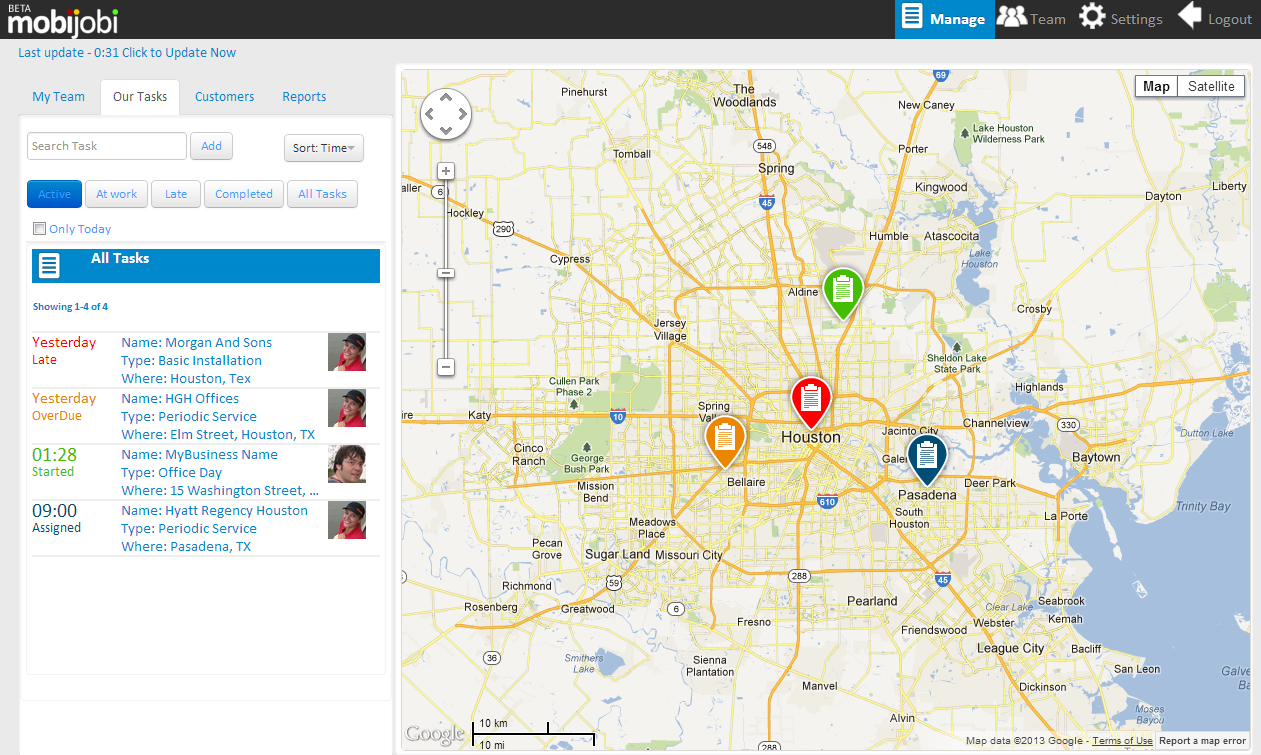
You can view all tasks (presented as icons over the map) by selecting “all tasks” view, or select a single task and view or edit its details.
mobijobi uses a color coding to help you easily identify task statuses:
- Red = late
- Green = started
- Orange = overdue
- Dark Blue = assigned
- Gray = unassigned
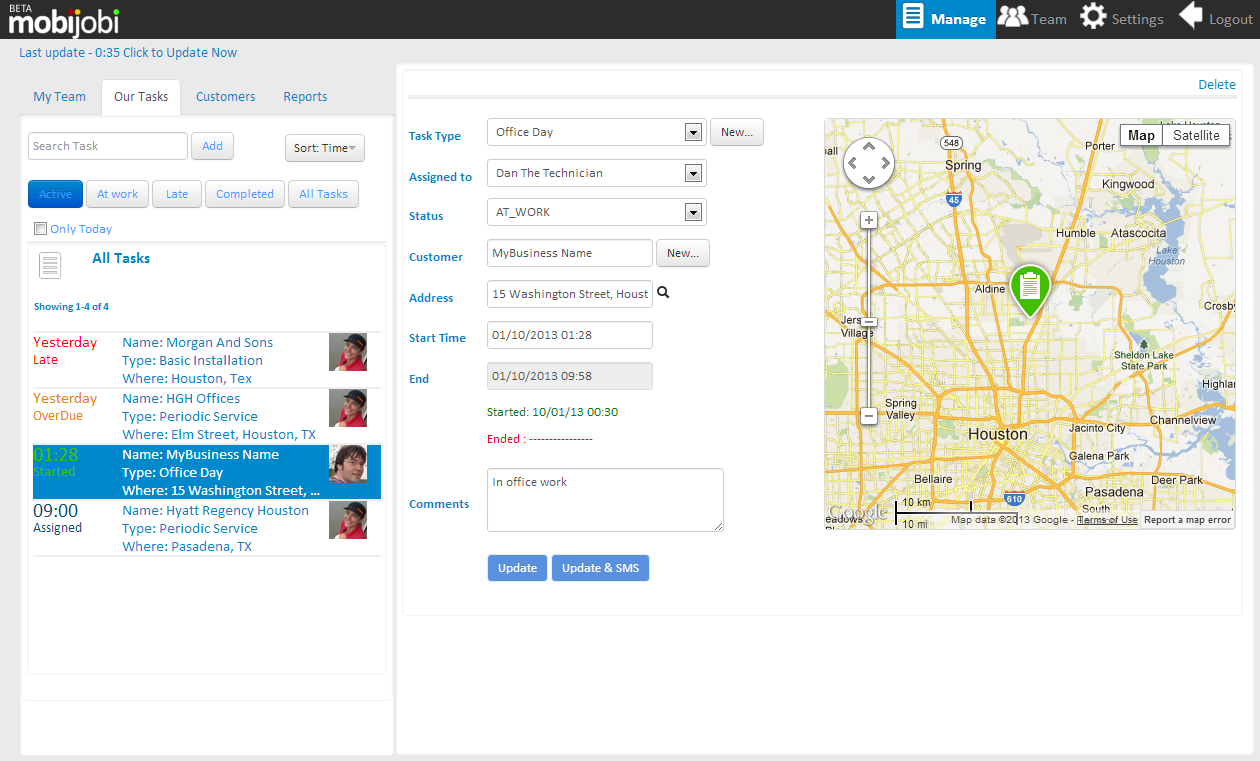
The task list can be filtered to show:
- “Active” – tasks in all statuses other than “Completed”.
- “At Work” – tasks in “At Work” or “Overdue” statuses
- “Late” – tasks in “late” statuses.
- “Completed” – tasks that were completed.
- “All tasks” an unfiltered tasks list.
A secondary filter named “Only Today” can be applied for all filters and once selected will show only tasks that their start time is today.
You can delete any selected task by clicking the “Delete” text at the upper right corner of the page. Keep in mind this action is not undoable.
 mobijobi.com - Field Service Management
0 Comments